
Flatsome UX Builder tutorial for beginners
Flatsome UX Builder looks intimidating the first time you open it, then quietly becomes the fastest way to build a WordPress site once it clicks. This is the exact tool we build on every day, so this Flatsome UX Builder tutorial is the practical walkthrough we would give a new client, not a recycled feature list. Work through it in order and you will have a real page live by the end. We will cover the three building blocks, how to build your first page, and how to shape a fast WooCommerce store.
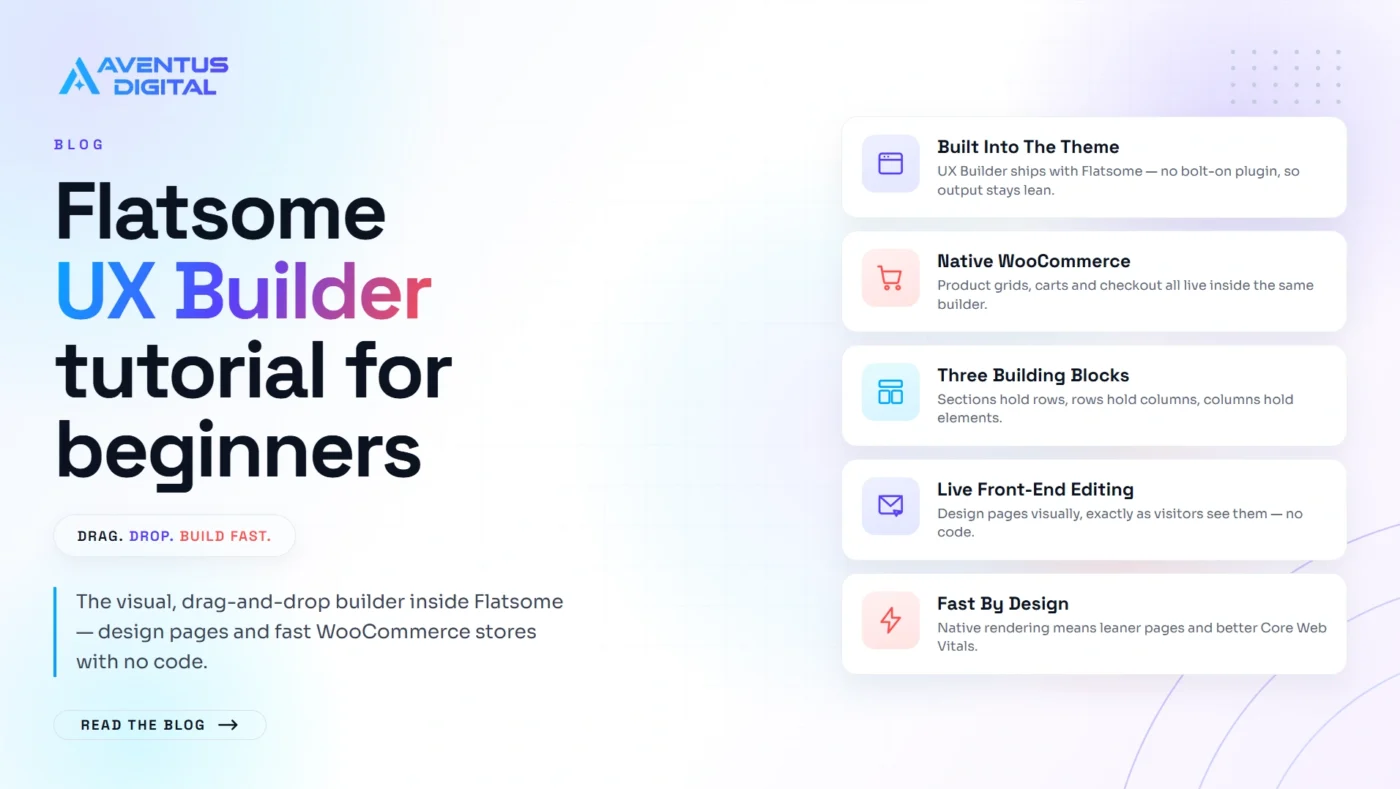
Flatsome UX Builder is the drag and drop page builder built into the Flatsome WordPress theme. You design pages live on the front end using sections, rows, columns and elements, with no code. Because it is part of the theme rather than a bolt on plugin, it stays light and works natively with WooCommerce.
Why build on Flatsome UX Builder
Most page builders add weight to your site. They load their own framework on top of WordPress, which slows pages down and drags on your Core Web Vitals. Flatsome is different because UX Builder is part of the theme, not a separate plugin sitting on top of it. The output stays lean, which matters for both rankings and conversions.
It also speaks WooCommerce natively. Product grids, category pages, carts and checkout all live inside the same builder, so you are not stitching two systems together. As Flatsome experts, this tight integration is exactly why it is our platform of choice for shops that need to load fast and look premium.
Opening UX Builder for the first time
The first step in any Flatsome UX Builder tutorial is simply opening the editor. Once Flatsome is installed and set as your active theme, open any page or post in WordPress, then click the blue “Edit with UX Builder” button at the top. That launches the live editor, where you see your page exactly as visitors will.
If you are brand new to WordPress itself, it helps to understand pages and posts first. The official WordPress documentation covers the content system underneath, which makes the builder far easier to follow. The editor has three zones: the canvas in the middle where you build, a left panel for elements and settings, and a top bar for saving, undo and device previews.
The three building blocks you need to understand
Everything in UX Builder is made of three nested pieces. Learn these and you can build almost anything.
- Sections. The full width horizontal bands that stack down your page. A section controls the background colour or image, the padding and the height. Think of each section as one strip of the page.
- Rows and columns. Inside a section you drop a row, then split it into columns. Columns hold your content side by side and control how the layout behaves across desktop, tablet and mobile.
- Elements. The actual content: text, buttons, images, banners, galleries, and WooCommerce blocks such as product grids. You drag these into columns.
The mental model is simple. Sections hold rows, rows hold columns, columns hold elements. Once that clicks, the builder stops feeling confusing.
Build your first page step by step
This is the core of the Flatsome UX Builder tutorial: getting a real page on screen. Build the structure first, then fill in the content. Beginners often start dropping in text and images too early, then fight the layout later.
- Add a section and set a background, either a solid colour or a hero image.
- Drop a row inside it and choose a column layout, for example a single full width column for a hero.
- Add a text element for your headline, then a button element beneath it, and point it at your contact or pricing page.
- Add a second section for your services, split into three columns, with an icon box or text block in each.
- Add a third section with a call to action and a form.
- Check tablet and mobile using the device icons in the top bar, then adjust column stacking and text sizes so it reads well on a phone.
- Save, then view the live page.
Building a WooCommerce store with UX Builder
This is the part of the Flatsome UX Builder tutorial that shop owners care about most. Because the builder and WooCommerce share the same theme, you can design shop pages that feel premium rather than templated. Use the product elements to place a curated grid on your home page, a featured products carousel, or a category showcase, controlling columns, spacing and hover style without touching code.
For the mechanics of products, variations, tax and shipping, the WooCommerce documentation is the reference we keep open. A common beginner win is to build a proper category landing page, with a banner, a short intro and a filtered product grid, rather than sending shoppers to a bare archive. You can see shops built this way in our portfolio.
Does UX Builder slow your site down?
Less than most builders, and that is the point. Because it is native to the theme, it does not load a separate rendering engine the way some plugin builders do. Your real world speed still depends on the usual factors: image sizes, hosting quality, caching, and how many heavy elements you stack on one page.
Keep images compressed, avoid piling too many sliders and animations onto a single page, and use a caching setup. A slow site quietly costs you sales, which is one of the 5 signs your website is costing you customers. Get the basics right and Flatsome pages tend to score well on speed.
How Aventus Digital helps
If you have followed this Flatsome UX Builder tutorial and would still rather have it built for you, that is our craft. We are a team of top rated freelancers with 7 plus years of experience and 650 plus five star reviews, now operating as one agency for UK and worldwide businesses. We build fast, premium sites on Flatsome and WooCommerce, with SEO, GEO and AEO baked in from day one through our SEO and GEO Audit.
Whether you need a brand new site through our website design service or a full ecommerce website, we handle the build so you can focus on the business. Not sure where your current site stands? Start with a free website audit.
You Might Also Like
- Is SEO still relevant for AI search? how AI Overviews choose the sources they cite.
- What is GEO? The UK business owner’s guide the plain English primer on getting cited by AI.
- Work with a Flatsome expert premium Flatsome builds, done for you.
- Why is my website slow? 9 causes and how to fix them
- WordPress vs Wix & Squarespace: which is better for a UK small business?

Author
Zubayed Feroz
Founder of Aventus Digital
Frequently Asked Questions
What is Flatsome UX Builder?
Flatsome UX Builder is the drag and drop page builder that comes bundled with the Flatsome WordPress theme. You edit pages visually on the front end using sections, rows, columns and elements, with no coding required. Because it is part of the theme rather than a separate plugin, it keeps your site fast and works seamlessly with WooCommerce.
Is Flatsome UX Builder easy to use?
Yes, once you understand its three building blocks: sections, columns and elements. Beginners can build a clean landing page within an afternoon by structuring the layout first and adding content second. The live front end editing means you always see exactly what visitors will see, which shortens the learning curve.
Can I use Elementor with Flatsome?
You can, but we do not recommend it in most cases. Flatsome already includes UX Builder, so adding Elementor means running two builders at once, which adds weight and can slow your site. UX Builder is designed for the theme and integrates better with WooCommerce, so it is usually the cleaner choice.
Does UX Builder slow down my site?
It has less impact than many plugin based builders because it is native to the Flatsome theme and does not load a separate engine. Real world speed depends more on image sizes, hosting, caching and how many heavy elements sit on a page. Optimise those and Flatsome pages perform well.
Can I switch themes without losing my UX Builder pages?
UX Builder uses Flatsome specific shortcodes, so moving to a different theme will strip the layout and show raw shortcode text. Your content still sits in the database, but each page will need rebuilding in the new theme. This is why we suggest committing to Flatsome before building out a full site on it.
Related Blogs

Which Hosting Is Best for Peptide Websites?
Short answer: Hostinger is what we put research peptide stores on, and our link takes [...]
Oct

Is It Legal to Sell Research Peptides in the UK? The MHRA Line, Explained for Store Owners
Short answer: selling research peptides in the UK is lawful in itself, and it stops [...]
Oct

How to Start a Peptide Business in 2026: Costs and Steps
Short answer: to start a peptide business you register the company, open the bank account, [...]
Oct

Best Ecommerce Platform for a Peptide Store (2026)
Short answer: the best ecommerce platform for peptides is a self-hosted WooCommerce store. Hosted platforms [...]
Oct

The peptide merchant account application pack that gets approved first time
Short answer: a peptide merchant account is won on evidence, not on wording. Underwriting opens [...]
Sep

Peptide Payment Processors Compared: US and UK 2026
Short answer: mainstream processors such as Stripe, PayPal and WooPayments exclude the category, so a [...]
Sep
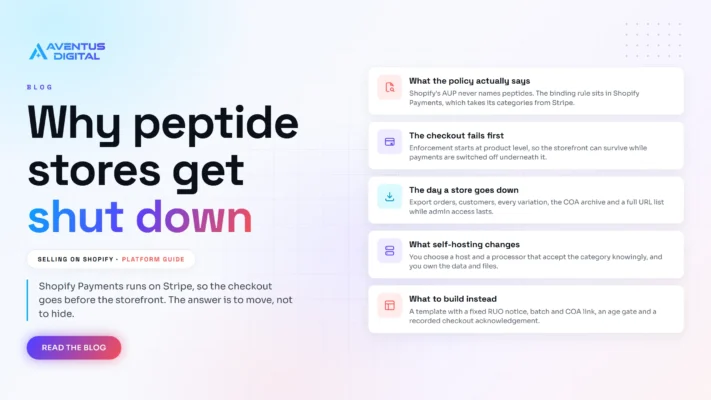
Selling Peptides on Shopify: Why Stores Get Shut Down
Short answer: not for long. You can open a store and sell peptides on Shopify, [...]
Sep

Peptide website compliance and how to get approved for payments
Short answer: peptide website compliance is decided on four things. A research use only position [...]
Sep